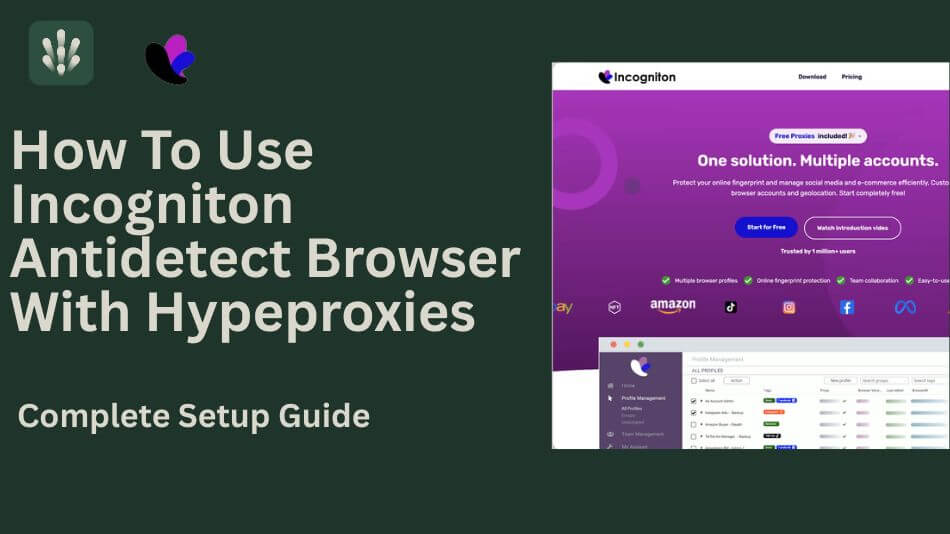
How to Use Incogniton Antidetect Browser with HypeProxies: Complete Setup Guide
If you've been running multiple accounts with just proxies, you've probably hit the wall already. Accounts flagged out of nowhere. Profiles suspended within days of creation. Verification loops that never end. And the frustrating part? Your IPs were clean. Your setup looked solid. So what went wrong?

Gunnar
Last updated -
Why Hype Proxies
Chances are, it wasn't your proxies. It was your fingerprint.
Modern platforms don't rely on IP tracking alone. They analyze a layered set of hardware and software signals (canvas rendering, WebGL output, audio context, installed fonts, screen resolution, timezone, and dozens more) to build a composite identity for every visitor. This technique is called browser fingerprinting, and it's accurate enough to link accounts even when other variables look clean. If two profiles share the same underlying fingerprint, it doesn't matter how many different IPs you throw at them. The platform already knows they're connected.
This is where an antidetect browser comes in. It reshapes those deeper fingerprinting signals so that each browser profile carries its own distinct, realistic device identity. Combined with a dedicated ISP proxy per profile, you get complete separation at both the network level and the device level. That's the foundation of reliable multi-account management today.
In this guide, we'll walk through Incogniton, the antidetect browser we recommend pairing with HypeProxies, and show you exactly how to set up the Incogniton proxy configuration step by step.
Why proxies alone aren't enough anymore
If you're already a HypeProxies customer, you know the value of a clean, static ISP proxy. A dedicated IP from a real U.S. carrier. No sharing, no rotation surprises, no bandwidth caps. That foundation matters – and it's not going anywhere.
But here's the reality of how platform detection works today: your IP address is just one signal among many. Behind the scenes, platforms like Facebook, Amazon, Google, and TikTok are analyzing parameters that most users never think about.
Canvas and WebGL rendering – your GPU's output acts as a visual fingerprint of your hardware configuration.
Audio context – your system's audio processing produces a measurable signature that varies from machine to machine.
System fonts and plugins – the exact combination installed on your OS creates a distinctive profile.
Screen resolution, DPI, and timezone – these environmental signals are compared against your IP's expected geolocation, and a mismatch raises flags instantly.
Hardware specifications – CPU cores, GPU renderer strings, and available memory all contribute to your overall fingerprint.
None of these signals can be cleared like cookies. They're baked into your hardware and operating system. You could rotate through a hundred different IPs, and every session would still carry the same fingerprint. When a platform sees that fingerprint appear across multiple accounts, it draws a straight line between them.
This is why the standard for reliable multi-account work is now a two-layer setup: static proxies handling the network identity, and an antidetect browser handling the device identity. One without the other leaves a gap, and platforms will find that gap.
What is Incogniton (and why we recommend it)
If you've heard of antidetect browsers but haven't used one, here's the short version: Incogniton lets you run multiple browser profiles on the same machine where each one looks like a completely different device to any website. Incogniton doesn't just swap a user-agent string or toggle a few visible settings. It reshapes the deeper fingerprinting signals we described above, the ones platforms actually use to link accounts.
The practical result: every browser profile you create in Incogniton carries its own distinct, stable fingerprint, even when they're all running on the same physical machine.
Here's why we specifically recommend pairing Incogniton with HypeProxies:
Per-profile proxy assignment. Each of your HypeProxies static ISP IPs maps cleanly to its own isolated fingerprint. One IP, one fingerprint, one identity. No overlap.
Stable, consistent fingerprints. Platforms don't just check your fingerprint once. They compare it over time. Incogniton generates fingerprints that stay consistent session after session, which is exactly what you need with static proxies. The IP doesn't change. The fingerprint doesn't change. The profile looks like the same real user every time it logs in.
Built for the workflows HypeProxies customers run. Ad account management, multi-marketplace eCommerce, social media for clients, SEO research at scale. Incogniton has dedicated features for each, including bulk profile creation, team role management, and automation SDKs that plug into the same tools (Playwright, Puppeteer, Selenium) HypeProxies already supports.
Incogniton offers a free Starter plan (10 profiles for the first 2 months, 3 after that) so you can test the full setup before committing to a paid tier.
Key Incogniton features worth knowing
Before we get into the setup, here are three things worth understanding about how Incogniton works – they'll help the walkthrough click.
Proxy management and protocol flexibility
You can assign a different proxy to every profile, with full protocol flexibility: HTTP, HTTPS, SOCKS4 and SOCKS5. You'll plug your HypeProxies credentials directly into each profile, and Incogniton includes a built-in proxy checker so you can verify the connection is live before you start browsing.
We use HTTP in this walkthrough – it covers the vast majority of use cases with HypeProxies and there's no practical difference in fingerprint security between HTTP and SOCKS5. If you need UDP support or you're routing non-browser traffic, SOCKS5 is also fully supported, and you can switch per-profile later without creating a new profile.
Fingerprint isolation and consistency
When you create a profile, Incogniton gives it a complete device identity: its own canvas hash, WebGL renderer, audio context, font list, media devices, and system traits. That fingerprint is generated once and stays locked, with no random drift between sessions that could trigger a re-verification.
Here's why this matters: Incogniton doesn't randomize fingerprints on every session. Some antidetect browsers do this, and randomizing per session is actually counterproductive. If a platform sees a device fingerprint that keeps changing, that's just as suspicious as seeing two profiles with the same fingerprint.
Real devices don't change their hardware configuration every time they open a browser. Incogniton generates a realistic fingerprint once, locks it, and replays it consistently, which is exactly the behavior a genuine device would exhibit. Combined with a static HypeProxies IP that also never changes, each profile becomes virtually indistinguishable from a single person on a single machine with a single internet connection.
Incogniton also includes a Cookie Collector that automatically visits sites and builds up natural cookie trails for each profile. It's worth running the Cookie Collector before you start any sensitive activity on a new profile. A browser with zero cookies and zero history is itself a fingerprint signal, and warming up with organic browsing data makes the profile look lived-in from the first real session.
Automation and team workflows
If you're running this at scale, Incogniton offers Python and TypeScript SDKs with documented APIs. It integrates with Playwright, Puppeteer, and Selenium so you can automate login flows, data entry, and account operations across dozens or hundreds of profiles while keeping each one fully isolated and fingerprint-consistent.
If you're running this as a team (agency work, client management, multi-person operations), Incogniton supports role-based access where each team member only sees the profiles assigned to them. All data syncs through encrypted cloud storage, and features like Bulk Profile Creation and the Synchronizer tool (which mirrors actions across multiple profiles simultaneously) help speed up large-scale setups.
Why HypeProxies is the right proxy for this setup
You can pair Incogniton with any proxy provider. But there are specific reasons we built this guide around HypeProxies – and they come down to what actually matters when your proxy is the network identity behind a long-lived account.
Direct ISP partnerships, and why that's not just marketing
Every IP at HypeProxies is ethically sourced and verifiable. We work directly with ISPs to provide real residential IPs, not datacenter addresses relabeled with better marketing.
This distinction matters more than most people realize, so let's be concrete about what "ethically sourced and verifiable" actually means in practice. When HypeProxies provisions IPs, they come from carriers like AT&T, Verizon, Frontier, and RCN. These IPs are registered to those carriers in public databases. If you run a reverse DNS lookup on a HypeProxies IP, it resolves to an ISP hostname, the same way your home internet IP does. If you check the fraud score through an API, it scores low (typically under 30 out of 100) because the IP is genuinely residential in origin.
Because we own the infrastructure and source directly from ISPs rather than relying on peer-to-peer networks or reclassified datacenter blocks, our fraud scores remain consistently low, unlike datacenter IPs masquerading as residential that spike the moment a detection service updates its database.
Compare that to what many providers sell as "residential". A lot of those pools are datacenter IPs that have been reclassified or routed through residential gateways. These reclassified IPs work fine in demos and small tests. Then you scale up, and platforms start flagging you instantly. The proxies didn't suddenly stop working. They may never have been what they were marketed as. We'll show you exactly how to test for this in the verification section below.
Infrastructure we own, not rent
The philosophy at HypeProxies is simple: control over convenience. Most proxy providers lease capacity from cloud hosting companies because it's cheaper to get started that way. We don't. HypeProxies operates its own bare-metal infrastructure: dedicated servers, owned racks, managed transit. From racks to routes to packets, everything runs through hardware we control.
Here's why that's relevant to this specific setup: when you're managing accounts with real revenue on the line (ad accounts, eCommerce storefronts, affiliate operations), you need infrastructure that doesn't degrade under load, doesn't share resources with other customers, and doesn't disappear because a hosting provider changed terms. We process over 60 billion requests monthly across this infrastructure with 100 Gbps of internet transit. When Proxyway ran its most recent performance benchmarks across top proxy providers, HypeProxies came out with the fastest response time and near-perfect uptime. That's not marketing – it's a testable claim, and you can verify it through Proxyway's published results.
Dedicated IPs that stay yours
Every HypeProxies IP is exclusively yours. No shared subnets with other users who might be sending traffic that gets the IP flagged. Your reputation stays entirely in your control.
This is worth understanding at a deeper level, because it explains why "pool size" (the number most proxy providers lead with) often works against you. When a provider advertises 50 million IPs, they're counting every device that's ever connected to their network. That includes IPs that haven't been active in months, IPs that got burned by other customers, IPs cycling through dozens of users daily. When you rotate through massive pools like that, you're gambling on every request. Some IPs are clean, some got flagged yesterday, some are being used by bad actors right now. At scale, you'll eventually touch every burned IP in that pool. And platforms remember.
A smaller set of clean, dedicated static IPs will outperform millions of recycled rotating IPs for this use case, especially for multi-account management where you need one IP to build a clean history with one profile. The question to ask any provider isn't about pool size – it's about IP isolation: "How many of your IPs are actively clean right now, and can I get dedicated access?" If they can't answer that, the headline number is meaningless.
There's also a cost dimension most buyers overlook until the first invoice. Rotating residential providers typically charge per gigabyte, and antidetect browser profiles are data-hungry – every session loads full pages with images, JavaScript, ads, and dashboards. That bandwidth adds up fast. HypeProxies charges per IP with unlimited bandwidth, so you can run profiles around the clock without metering. The per-IP price is the total price.
Static means stable, and platforms measure stability
Your IP doesn't rotate or change unexpectedly. The IP assigned to a profile today will be the same IP next week and next month. This matters because platforms track IP history alongside fingerprint history over time. A sudden IP change on an established account triggers security checks just as easily as a fingerprint mismatch, which is why static ISP proxies are specifically better suited for antidetect browser work than rotating residential proxies.
99.9% uptime on infrastructure we control
When you're managing live accounts, downtime isn't an inconvenience. It's a risk. A missed session, a failed login, a timeout during a critical operation can trigger security flags or simply cost you money. HypeProxies maintains 99.9% uptime across its infrastructure, backed by 24/7 support on live chat and Discord if anything does come up.
The combination: Incogniton makes every profile look like a different device. HypeProxies makes every profile look like it's on a different network. No shared fingerprints, no shared IPs, no signals for platforms to connect the dots.
For teams running at serious scale (50 or more profiles with dedicated infrastructure needs), HypeProxies Enterprise offers custom deployments with private subnets and dedicated servers.
How to verify your proxy is what you actually paid for
Before we get into the Incogniton setup, here's something worth doing first – especially if you've ever had a nagging feeling that your proxies might not be what the provider claims. These are three tests you can run on any proxy pool to verify what you're actually paying for.
Fraud score check. Run your IPs through a fraud detection API. Real ISP proxies should score low, typically under 30 out of 100. If you're seeing high fraud scores, you're likely on datacenter IPs that someone relabeled as residential. HypeProxies' own Proxy Tester checks this for you, along with speed, latency, ASN, WebRTC leaks, DNS, headers, and VPN/TOR detection. Completely free, no login required, no catches.
Reverse DNS lookup. Real ISP proxies resolve to ISP hostnames – names that point back to carriers like Comcast, Verizon, or AT&T. Datacenter proxies resolve to hosting companies like AWS, DigitalOcean, or OVH. If your "residential" IP resolves to a hosting provider, it's not residential.
Geolocation consistency. Genuine ISP proxies stay in one location because they're tied to real infrastructure. If your "residential" IP shows Texas one minute and Germany the next, it's not coming from an actual ISP. You're being routed through a cheap peer-to-peer pool or a rotating gateway that has nothing to do with the static IP you paid for.
Most teams skip these checks – understandably, you're busy – and just trust the provider's word. Then they hit production volume and wonder why everything's getting blocked. The proxies didn't suddenly stop working. They may not have been what they were supposed to be.
HypeProxies IPs consistently pass all three of these tests. You can verify this yourself with our free proxy tester. No logins. No signups. No catches.
Step-by-step: setting up HypeProxies in Incogniton
Here's the full walkthrough from our own test setup. The whole process takes about five minutes per profile – it's quicker than it looks.
Step 1. Grab your proxy credentials from the HypeProxies dashboard
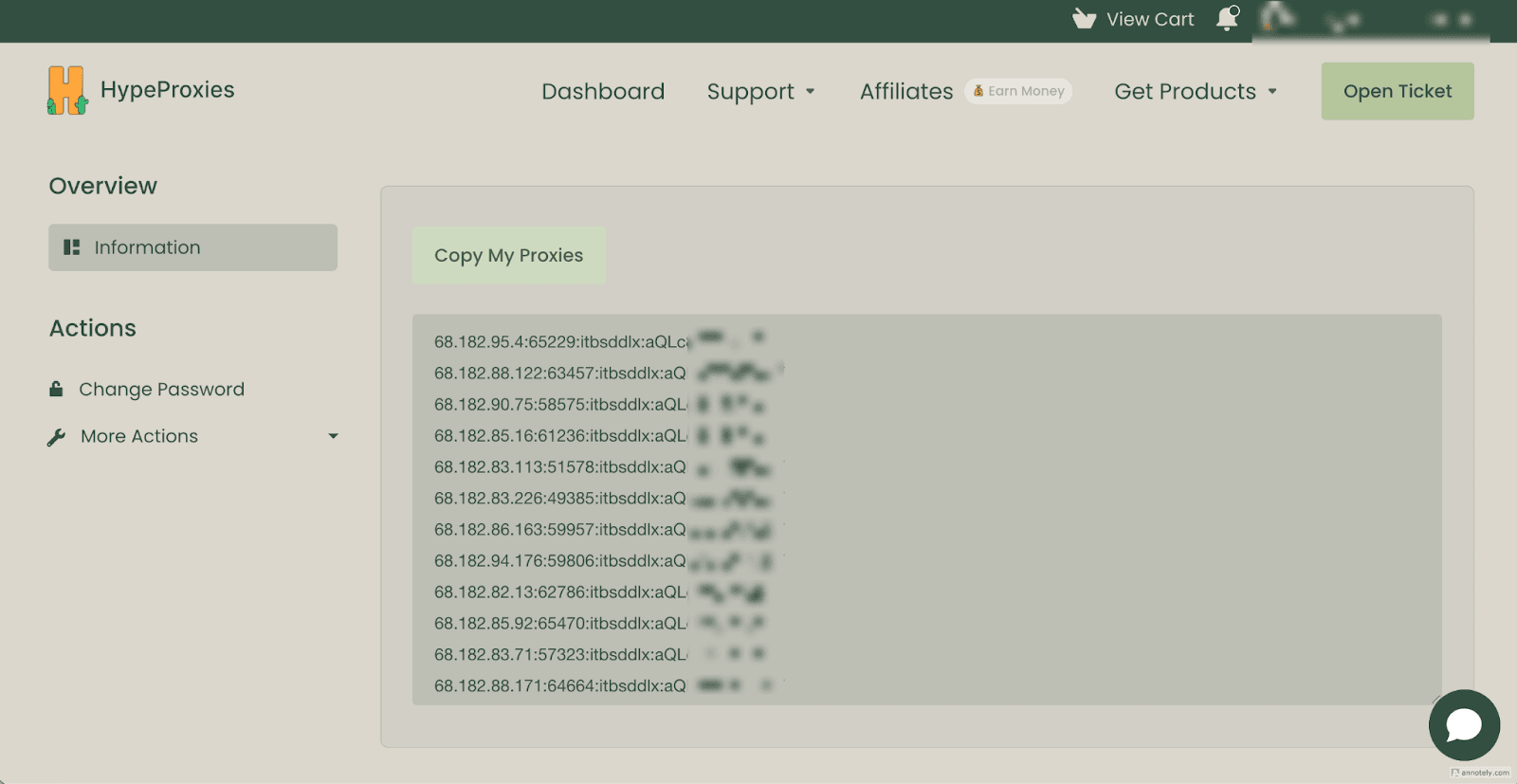
Log in to the HypeProxies dashboard. Navigate to your active proxy service and you'll see your full proxy list in ip:port:username:password format. Click "Copy My Proxies" to grab them all at once, or copy individual lines for the specific IPs you want to assign.
Tip: Incogniton's bulk import format matches HypeProxies' default clipboard format (ip:port:user:pass), so you can often paste directly.
Step 2. Download Incogniton and create a new profile
Head to incogniton.com and download the desktop app for macOS or Windows. Install it, create a free account (the Starter plan gives you 10 profiles for the first 2 months), and sign in.
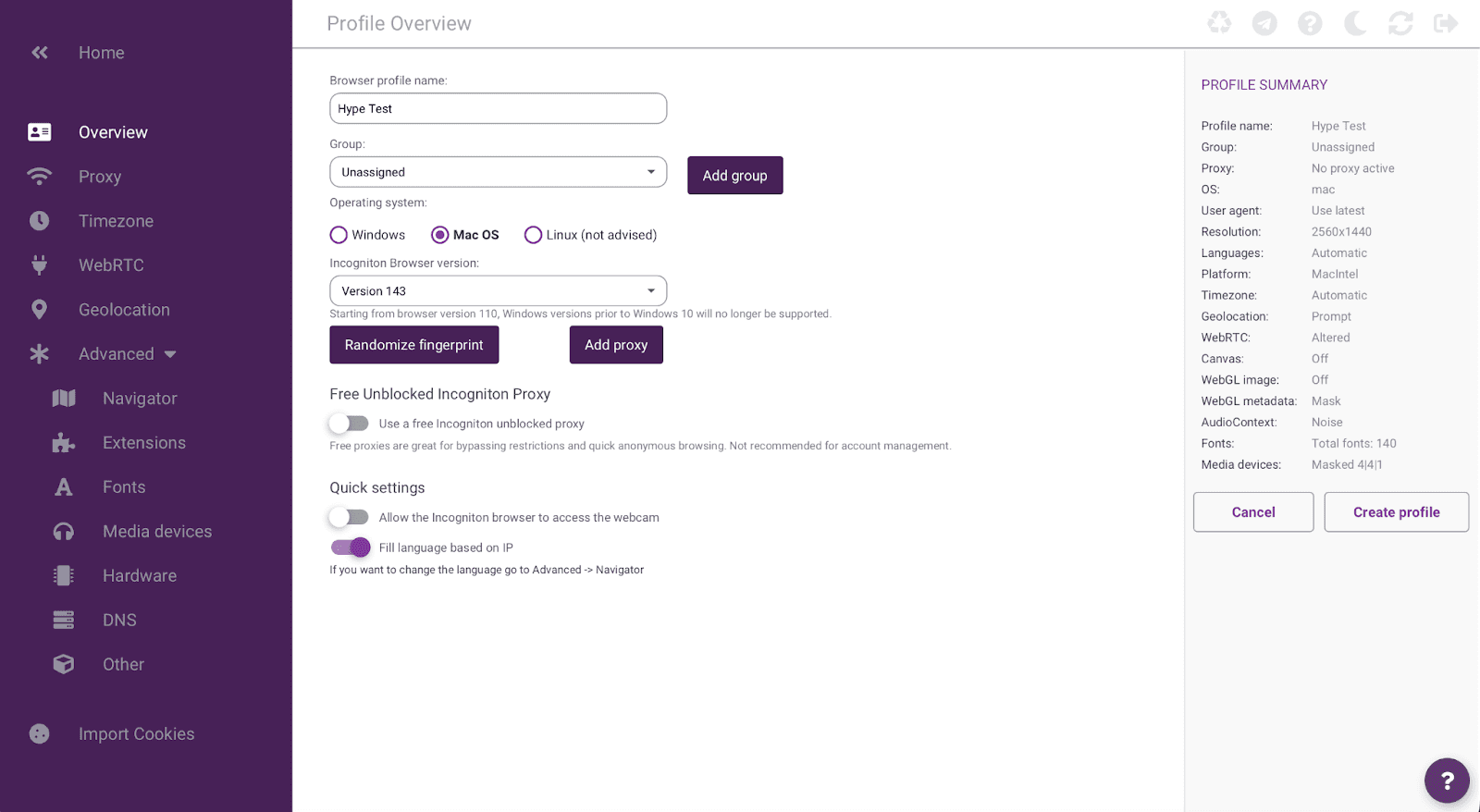
Click "New profile" or "Go to profile creation". You'll land on the Profile Overview screen. Give your profile a descriptive name (we're using "Hype Test" for this walkthrough). Choose your operating system (we went with Mac OS), confirm the browser version, and take a quick look at the Profile Summary panel on the right side. It should read "No proxy active" for now.
Leave the fingerprint defaults as they are. Incogniton automatically generates a realistic, consistent fingerprint. You can click "Randomize fingerprint" to regenerate it, but the default is solid.
Step 3. Add your HypeProxies proxy
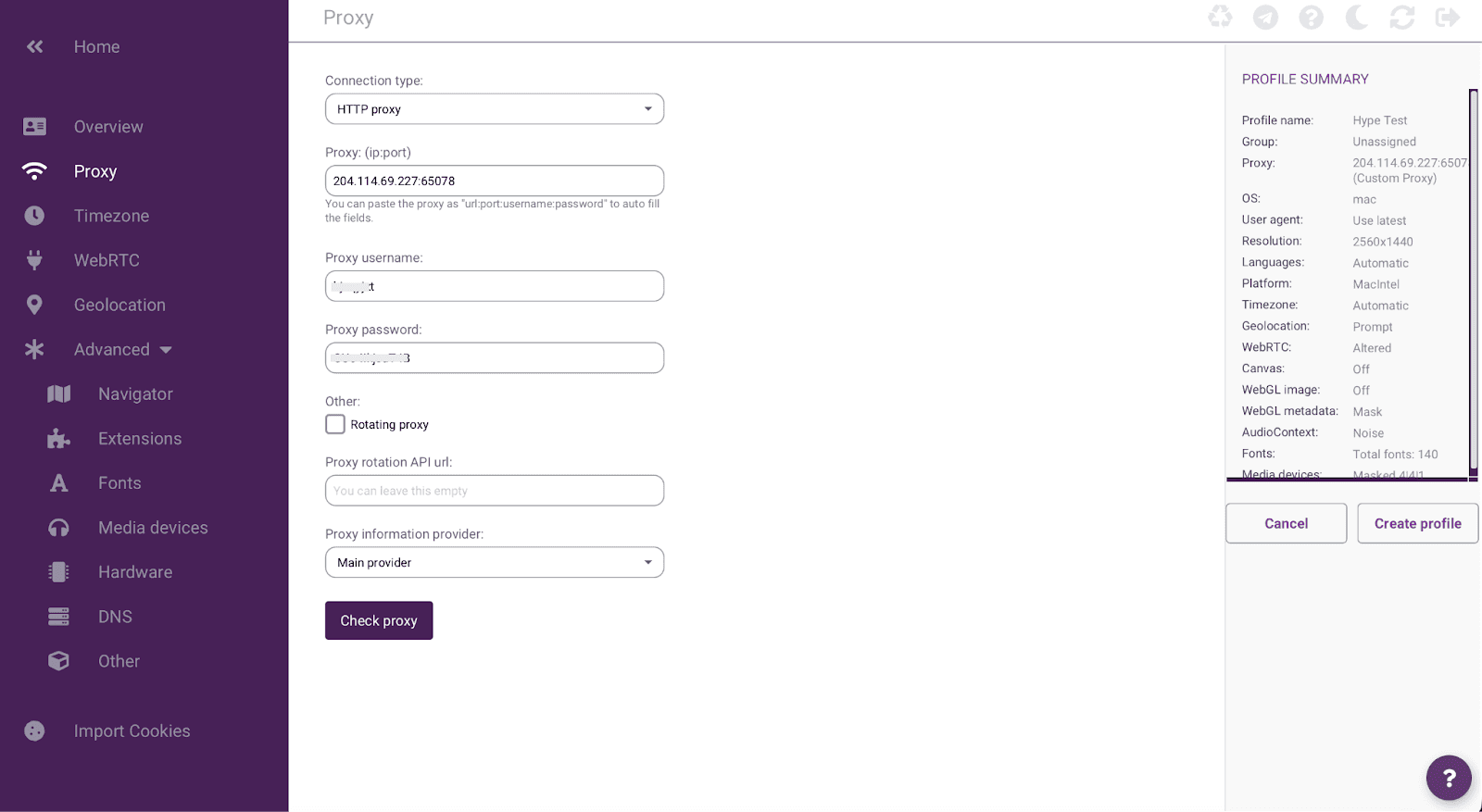
Click the Proxy tab in the left sidebar.
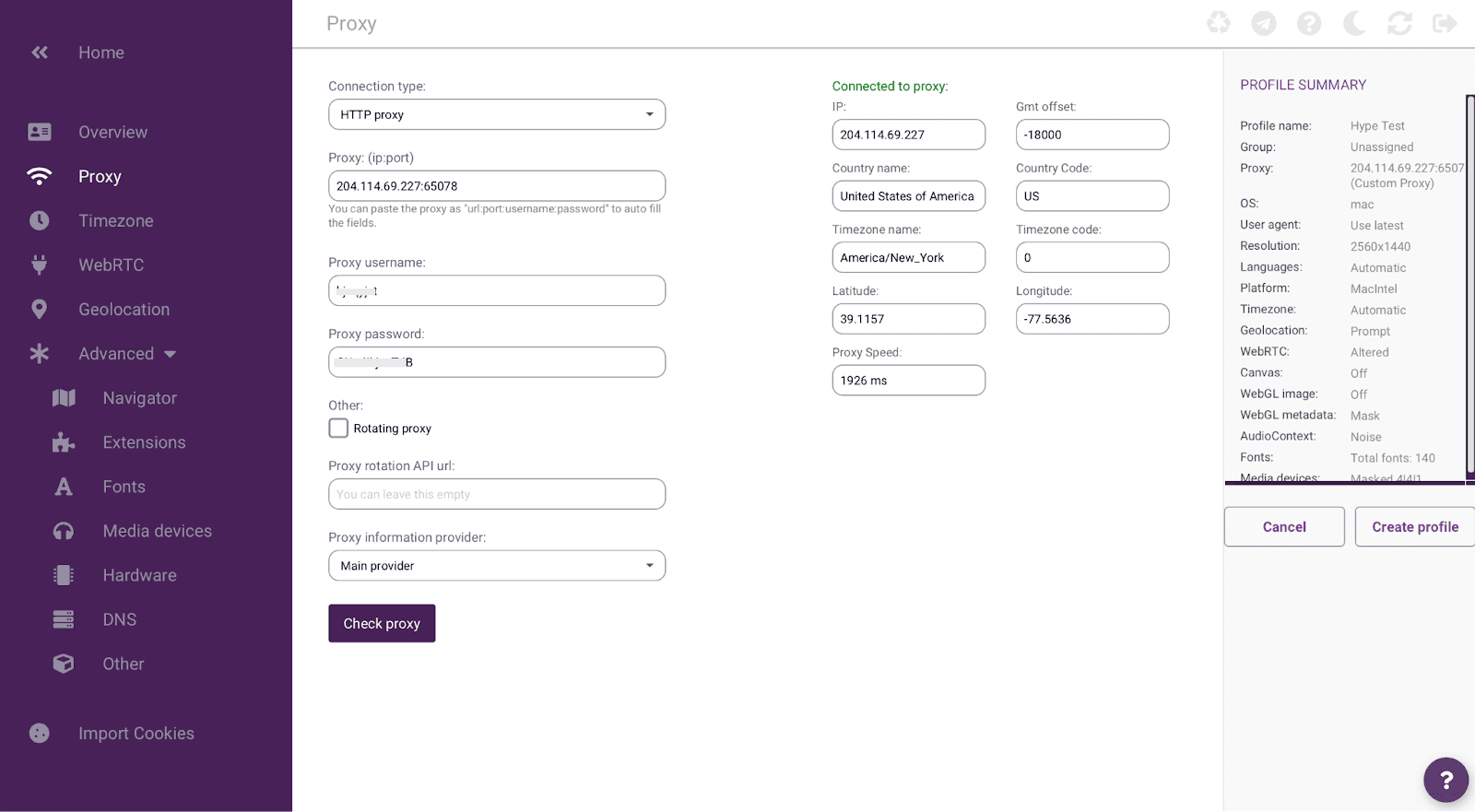
Fill in the fields using the credentials you copied from your HypeProxies dashboard:
Connection type: Select HTTP proxy (HTTPS, SOCKS4, and SOCKS5 are also supported).
Proxy (ip:port): Enter your HypeProxies IP address and port. In our test, we used
204.114.69.227:65078.Proxy username: Enter your username.
Proxy password: Enter the corresponding password.
You can also paste the full string in ip:port:username:password format and Incogniton will auto-fill all four fields, which is handy if you copied directly from the HypeProxies dashboard.
Leave "Rotating proxy" unchecked because HypeProxies provides static ISP proxies, so rotation isn't needed.
Step 4. Verify the connection
Click the "Check proxy" button at the bottom of the page. Incogniton will test the connection and, if everything is configured correctly, display a green "Connected to proxy" confirmation on the right side with the full details of your connection:
IP: 204.114.69.227
Country: United States of America (US)
Timezone: America/New_York
Latitude / Longitude: 39.1157 / -77.5636
Proxy Speed: 1926 ms
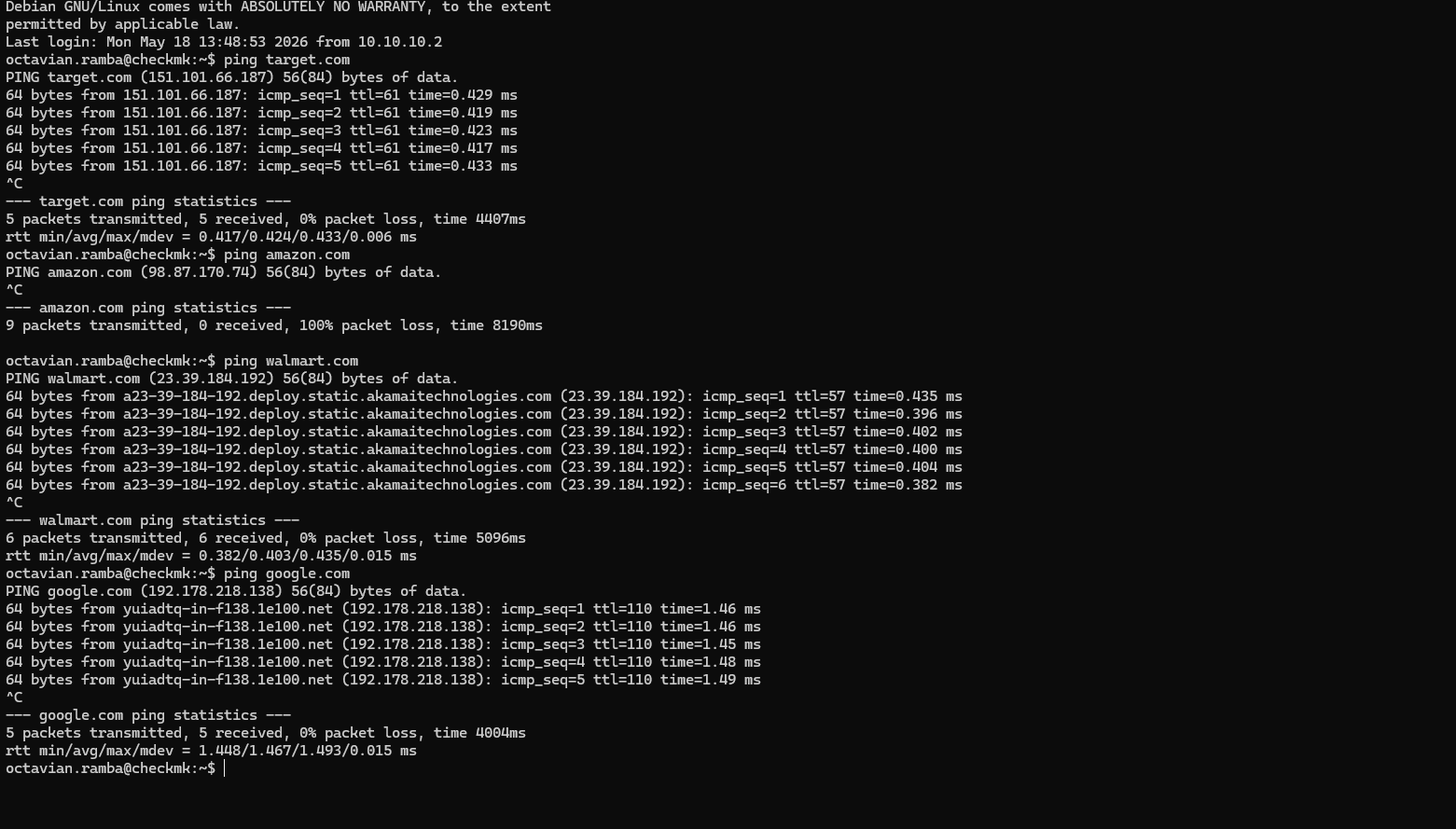
Live latency check from our newly opened datacenter in Dallas showing <1ms response time to Amazon, Walmart, and Target. Lower latency means quicker requests during checkouts, queue entries, and high-demand drops.
If the connection fails, double-check your credentials and make sure your HypeProxies service is active.
Step 5. Create and launch the profile
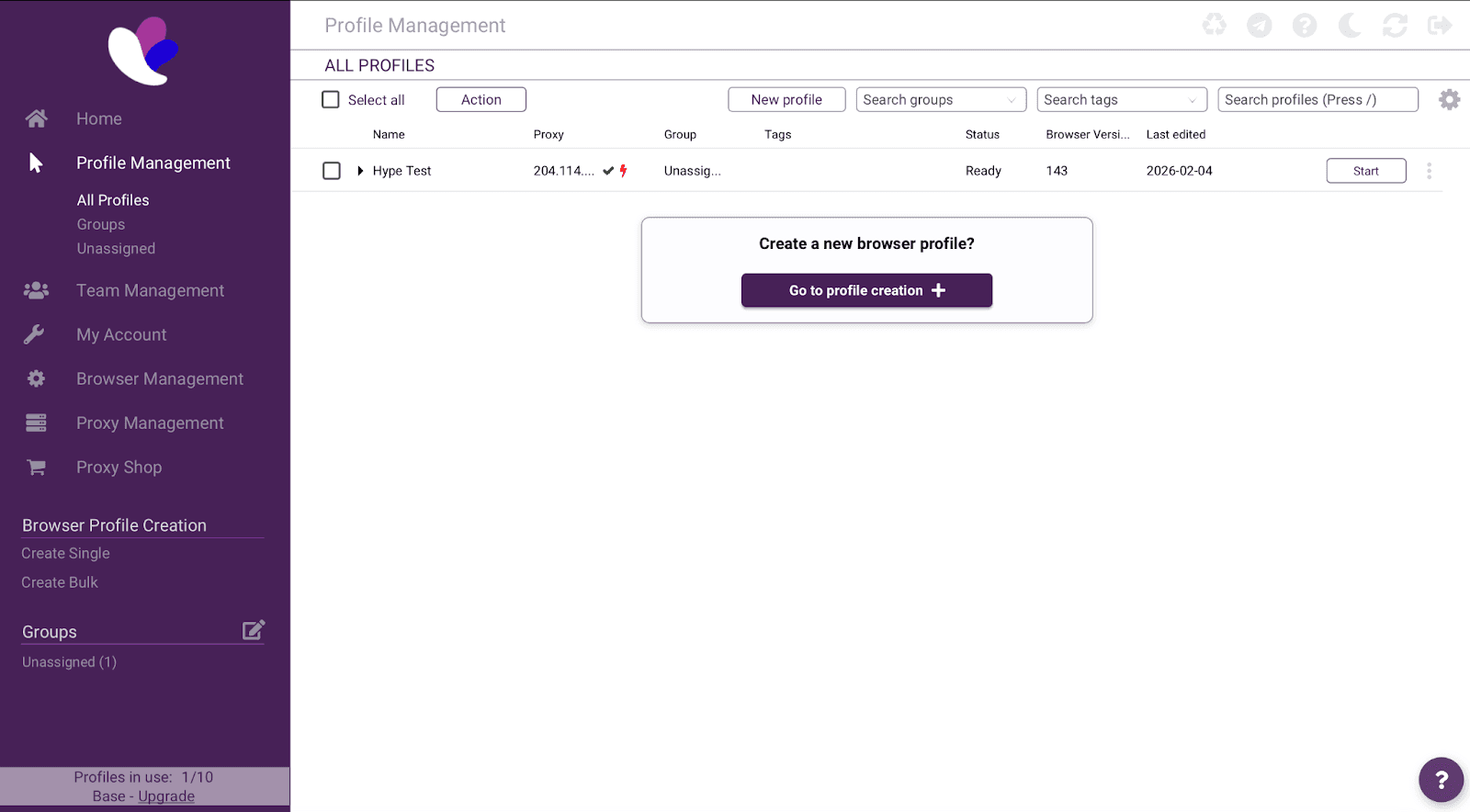
Head back to the Overview tab and click "Create profile". Your profile now appears in the Profile Management dashboard. You'll see the name ("Hype Test"), the proxy address, browser version 143, and a "Ready" status.
Click Start.
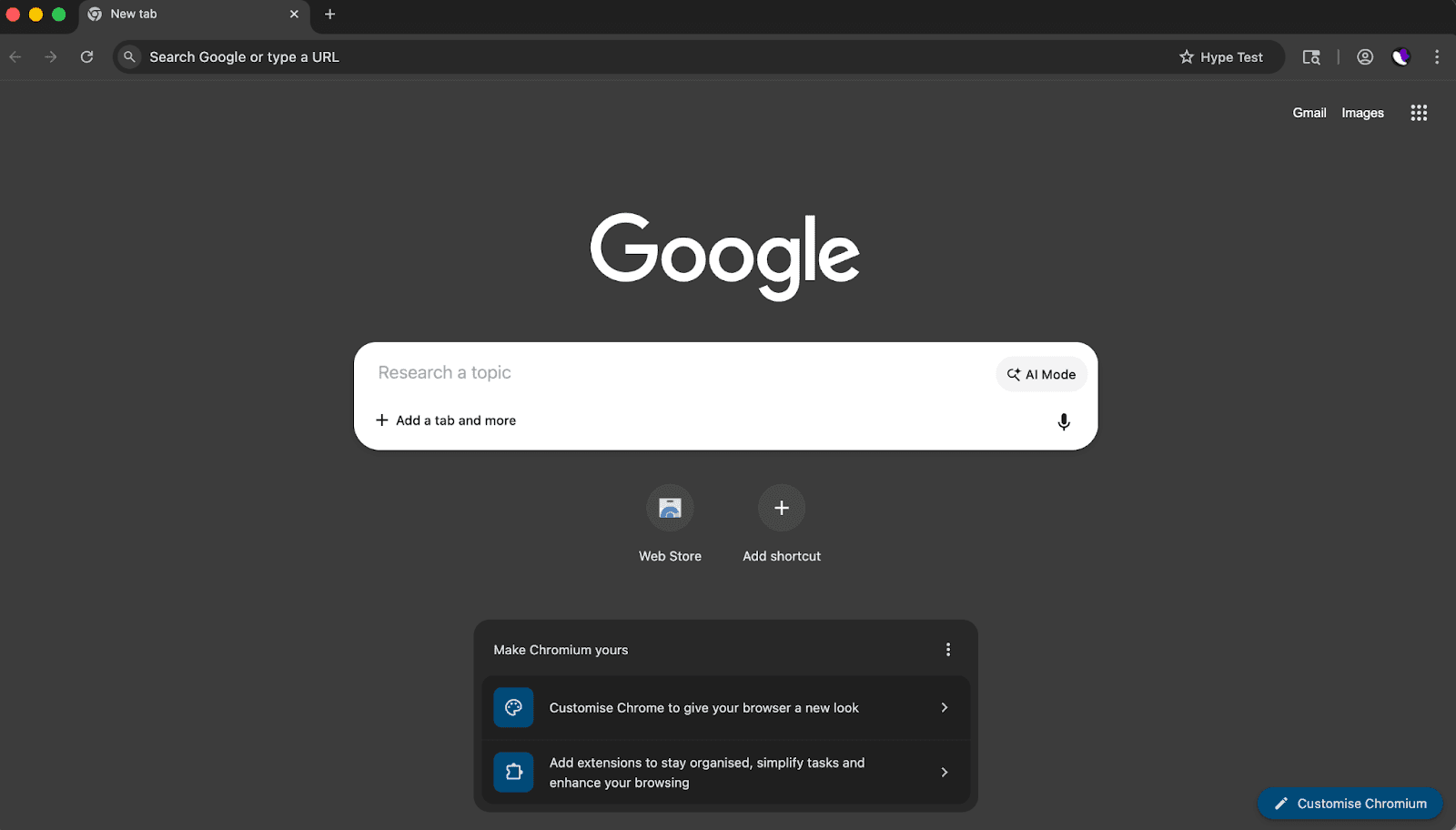
A fully isolated Chromium-based browser window opens immediately, with the profile name "Hype Test" displayed in the top-right corner of the browser toolbar.
Step 6. Confirm everything is working
With the profile browser open, you'll want to verify the full setup. We recommend two checks:
Check your IP and fingerprint. Visit a fingerprint check service like browserleaks.com or bscan.info. You should see your HypeProxies IP address (not your real IP), a unique browser fingerprint distinct from your actual device, and consistent U.S. geolocation matching the proxy's location data.
Audit your proxy quality. Run your IP through the HypeProxies Proxy Tester to verify the fraud score, ASN, reverse DNS, WebRTC leaks, and more. This confirms you're running a genuinely clean ISP proxy, not a datacenter address that will get flagged under load.
If both checks pass, you're all set – that profile is fully protected.
Repeat for each account
Every additional profile follows the exact same process – it gets faster each time. Just assign a different HypeProxies IP to each one.
Pro tip: If you're setting up more than a handful of profiles, use Incogniton's Bulk Profile Creation feature to generate multiple profiles at once, then assign proxies individually.
How to guarantee 100% consistency (the setup pro-tip)
Most setup guides stop at "proxy works, fingerprint is unique, done". But if you're reading this far, you're building something that needs to last. There's one more layer to get right, and it's the difference between profiles that survive long-term and profiles that get flagged within a week.
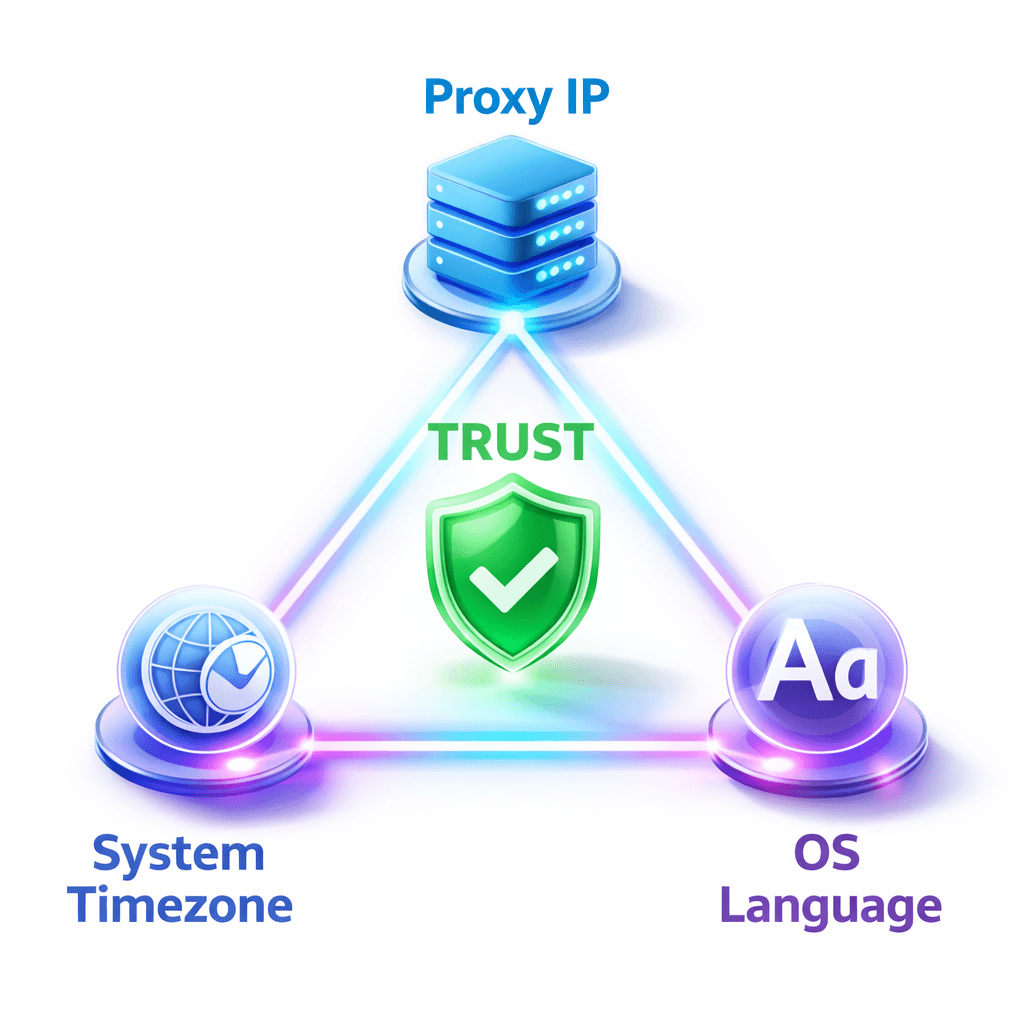
Say you're running a profile through a HypeProxies IP geolocated to Virginia. The proxy is clean. The fingerprint is unique. Everything looks right. But the profile's timezone is set to Pacific, and the system language is still whatever your actual machine defaults to. Nothing is technically broken. The proxy connects, the browser opens, the sites load. But to the platform, the identity doesn't add up. A user in Virginia whose browser reports Pacific time and a non-U.S. locale? That's not how real users look. It's the kind of inconsistency platforms use to flag profiles for manual review.
The good news: the fix is straightforward. It just requires thinking about the profile as a whole.
Match your timezone to your proxy's geolocation. When you check your HypeProxies IP in Step 4, note the timezone Incogniton reports (in our walkthrough, it was America/New_York). Make sure your profile's timezone setting in Incogniton matches this. Incogniton can match the timezone automatically based on the proxy IP, so let it.
Match your system language and locale. A U.S.-based IP should pair with English (US) language settings. If the profile's fingerprint is reporting a different primary language, adjust the language in Incogniton's profile settings.
Be intentional about hardware diversity. If you're creating 20 profiles, all with the exact same screen resolution and hardware specs, that's its own pattern. Vary the resolutions, CPU core counts, and memory values across your profiles to reflect what a diverse set of real users would look like. Incogniton generates diverse fingerprints by default when you create new profiles, but it's worth reviewing the spread if you're managing a large set. Keep the OS consistent with your actual machine for the most believable rendering outputs – the FAQ below explains why.
Don't skip the Cookie Collector. A brand-new browser profile with zero cookies, zero browsing history, and zero cached data looks exactly like what it is – a freshly created profile. Run Incogniton's Cookie Collector on each profile before you start doing anything that matters. Ten minutes of automated browsing gives the profile a realistic history baseline – a small investment that pays off immediately.
The principle behind these checks: the goal isn't just to make each profile different from the others. It's to make each profile internally consistent: a believable identity where the IP, the fingerprint, the timezone, the language, and the browsing history all tell the same story.
What this two-layer setup protects you against
Let's be specific about what combining HypeProxies with Incogniton actually prevents – and why a single-layer approach falls short.
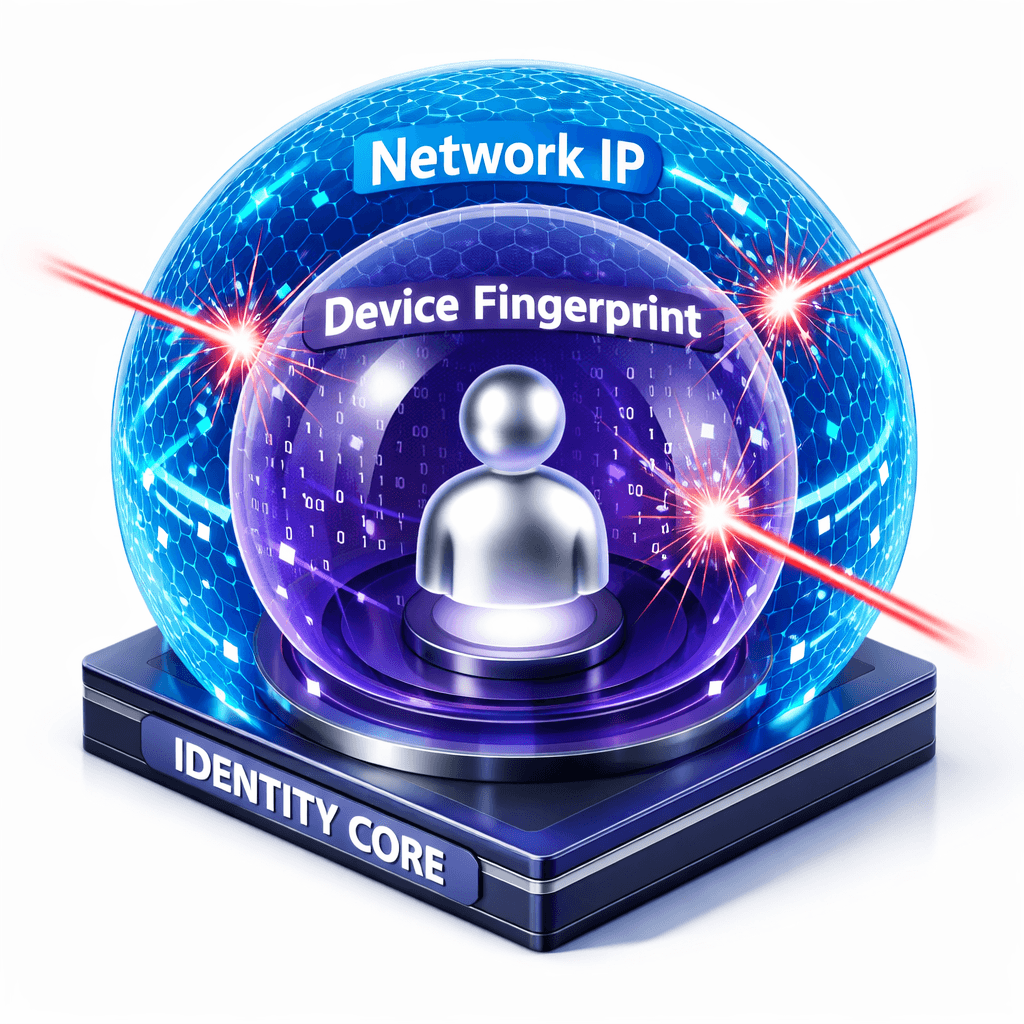
Your profiles can't be linked by fingerprint. With Incogniton, each profile carries its own device identity, so there are no shared signals to connect.
Your profiles can't be linked by IP. Without dedicated proxies, multiple accounts sharing the same IP (or IPs from the same subnet) are trivially linked through basic log analysis. With HypeProxies, every profile connects through its own clean, private address that looks like a regular consumer internet connection.
Your profiles won't get flagged for mismatched signals. A U.S. proxy paired with a European timezone and non-English system fonts raises immediate red flags. Because you've matched the full fingerprint to the proxy's geolocation (above), each profile presents a coherent identity from top to bottom.
Your sessions won't trigger security checks from IP changes. Rotating proxies can work for web scraping, but for account management, logging in from a different IP every session is a flag. Static IPs paired with locked fingerprints mean platforms see the same stable user every time.
You won't inherit someone else's burned IP. Even with a perfect fingerprint setup, a flagged IP address will get your account restricted. Because HypeProxies sources IPs directly from ISP partnerships (ethically sourced, verifiable, and elite-grade), you're starting clean and staying clean.
Final thoughts
The setup takes five minutes per profile, and the protection it provides is the difference between accounts that last and accounts that don't.
Ready to set it up?
Get your HypeProxies plan. Starting at $1.06/IP with unlimited bandwidth.
Create your free Incogniton account. 10 profiles for the first 2 months on the Starter plan.
Questions about the setup, or want help planning your proxy allocation? Our team is available 24/7 on live chat and Discord.
FAQs
What happens if my Incogniton fingerprint fails a check on browserleaks.com, and how do I fix it?
The most common cause is a mismatch between your proxy's geolocation and your profile settings. Sync your Incogniton profile's timezone, language, and WebRTC settings to match your HypeProxies IP's location (visible in the proxy check from Step 4). If canvas or WebGL is showing your real hardware, make sure fingerprint overrides are enabled and click "Randomize fingerprint". If you're seeing WebRTC leaks, set WebRTC to "Disabled" or "Replace" in the profile settings.
Should I match the OS in Incogniton to my actual machine, or use a different one?
Match your real OS for the safest results. Your actual OS produces the most natural canvas and WebGL rendering outputs, so a Mac user should select Mac OS in Incogniton. Emulating a different OS works but isn't perfect under all detection methods. If you're running many profiles, diversify through screen resolution, hardware specs, and language settings rather than mixing operating systems.
How often should I regenerate my Incogniton fingerprint?
Almost never. Only regenerate when retiring a profile or rebuilding a compromised identity from scratch. Changing a fingerprint mid-use makes the platform treat the profile as a new device, triggering security checks or re-verification. The whole point of stable fingerprints paired with static IPs is consistency. If you do regenerate, pair the new fingerprint with a new HypeProxies IP – a new fingerprint on the same IP is itself a mismatch.
What do I do if a platform still flags me after this setup?
The issue is most likely behavioral, not technical. Common triggers include logging into multiple accounts in rapid succession, using identical payment methods across profiles, or performing the same actions in the same sequence. Give each profile its own email, payment method, and realistic usage pattern. If flags persist after addressing behavior, run your IP through the HypeProxies Proxy Tester and check browserleaks to rule out technical leaks.
Can I use the same HypeProxies IP for two profiles if they're on different platforms?
We'd advise against it. Platforms increasingly share detection data through third-party ad networks, so the same IP appearing with different fingerprints across Facebook and Amazon can still be flagged. The safest approach is one dedicated IP per profile regardless of platform. At $1.06/IP with unlimited bandwidth, the cost is low relative to the risk.
Share on

No credit card required. Request your free trial today.
Stay in the loop
Subscribe to our newsletter for the latest updates, product news, and more.
No spam. Unsubscribe at anytime.